

With Groups, you can organize variables and questions into named groups within a project. This makes it easy to focus on one topic area at a time and to distribute the right data to the right recipients.
Brand tracking – Create one group per brand and analyze them individually, without needing separate projects or reports.
Employee Survey – Break down questions by department or theme (leadership, work environment, development) and send only the relevant group to the respective manager.
You can export groups individually from your dashboard or export them to PowerPoint or Excel.
Here’s how to create a group
Step 1 – Open the Groups menu
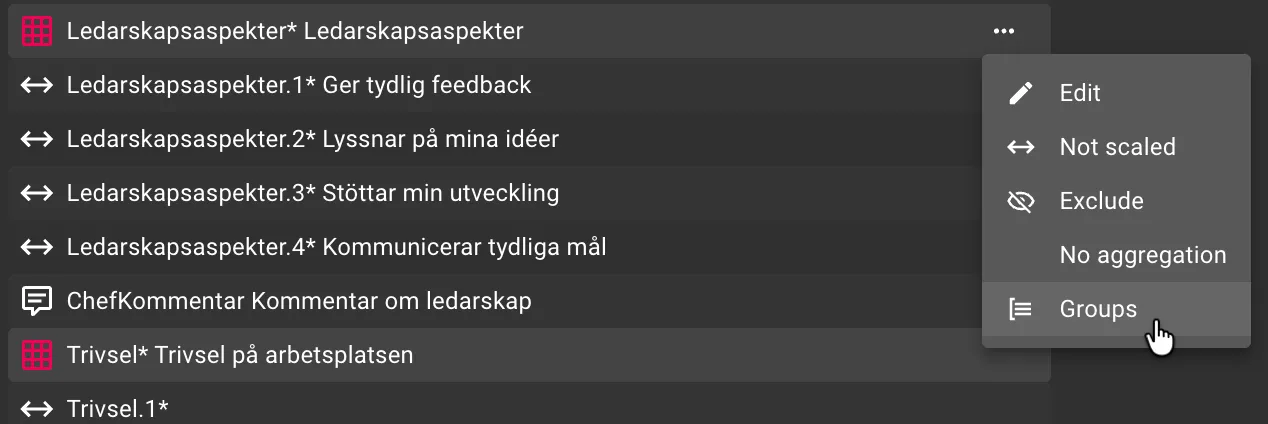
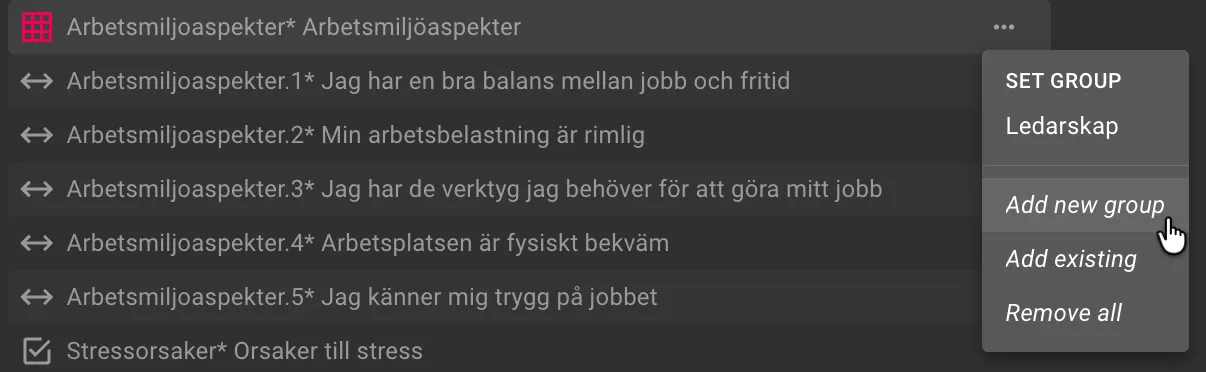
Click the three dots (···) next to a variable or question in the Dashboard tab that you want to add to a group.
Select “Groups” from the menu that appears.
Step 2 – Create a new group
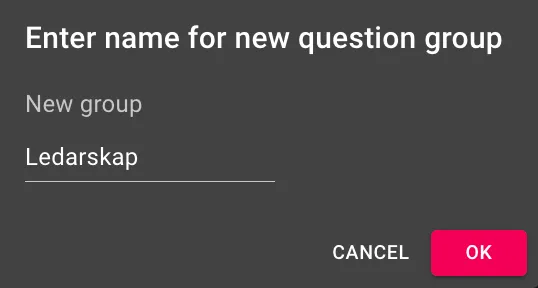
Click Add new group and enter a name for the group.
The group is now created and appears in the dropdown menu in the upper right corner, next to the report name.
Step 3 – Add more variables to the group
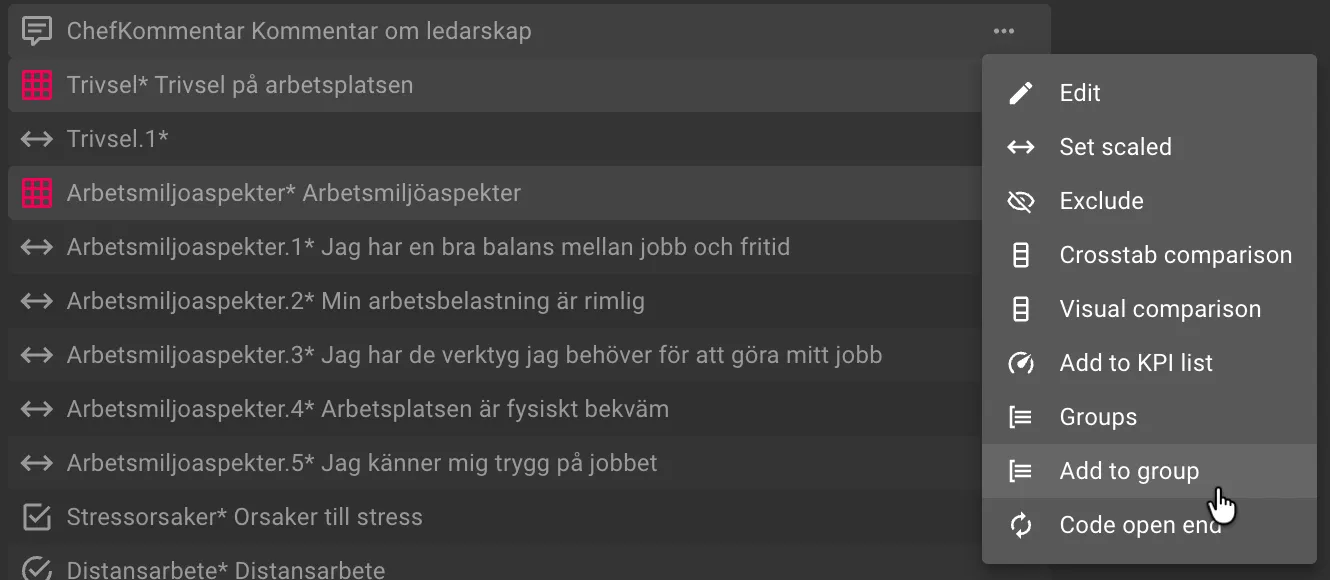
Click on ··· next to the next variable you want to add.
Select Groups → Add to group, and it will be added to the active group.
Repeat this for all variables that belong to the group.
Step 4 – Switch between groups
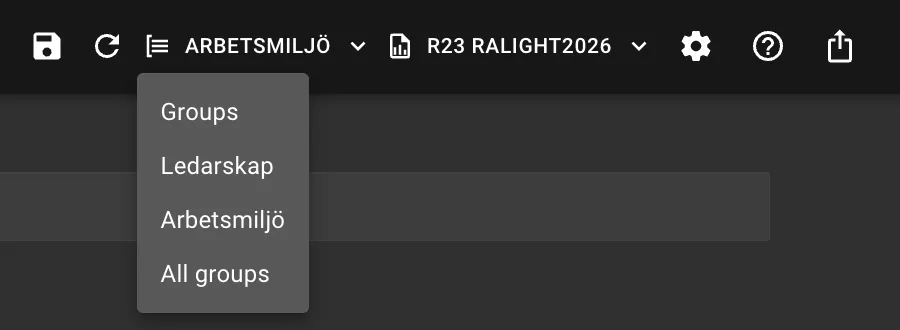
Use the dropdown menu in the upper right corner (next to the report name) to switch between your groups.
You can create as many groups as you want using the same method.
Step 5 – Reorder groups
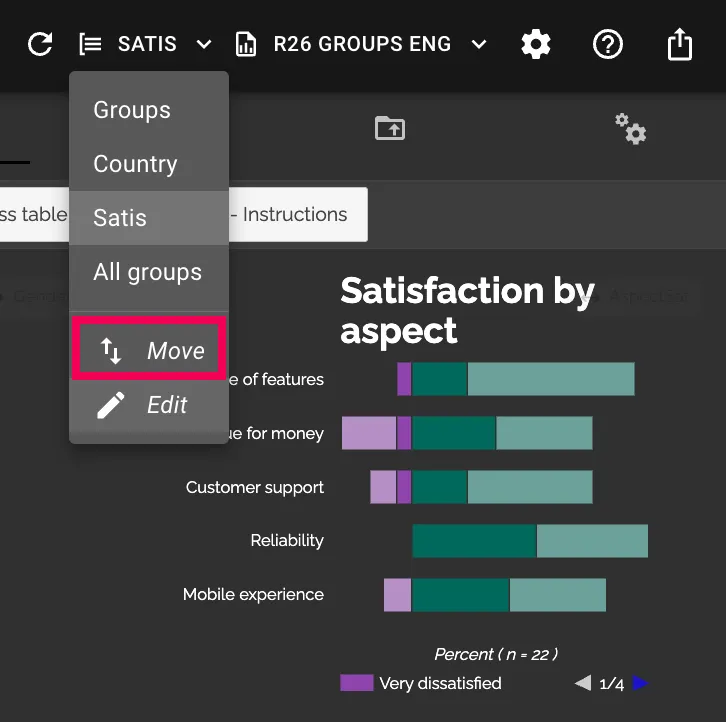
Click the dropdown menu in the upper right corner (the same one you use to switch between groups). With the correct group selected, choose Move. You can then select Backward, Forward, First, Last, or move the group to a specific position using Move after.
Step 6 – Rename or delete a group
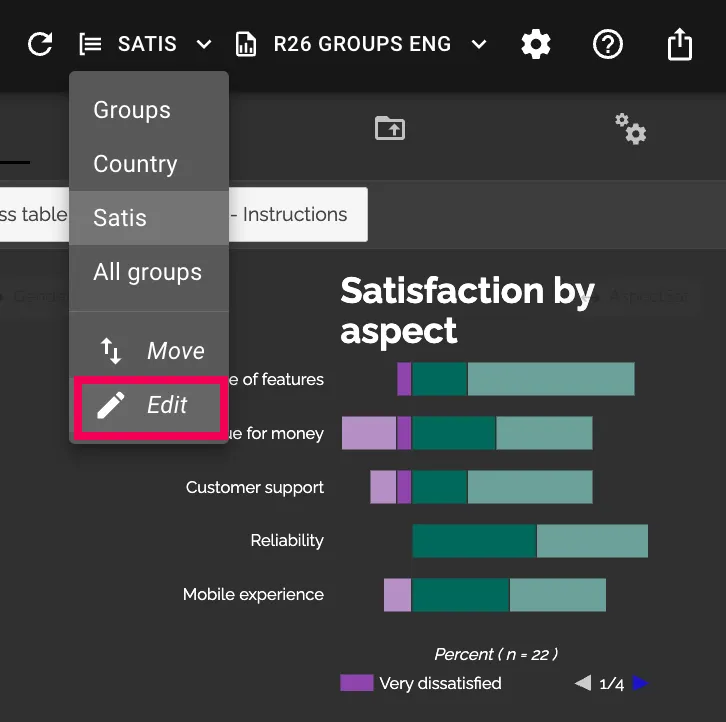
Select the correct group from the dropdown menu and click Edit. There, you can both rename the group and delete it.
Examples of Use Cases
Brand tracking – Create one group for all questions about competing brands and another for your own. Keep your analysis organized without needing separate reports.
Employee survey – Divide the questions into groups by theme, such as “Leadership,” “Work Environment,” and “Development.” You can then export or share just the leadership group with the HR manager, the work environment group with the safety representative, and so on.
Export and Distribution by Group
When exporting to PPT or Excel, you can choose to export all groups or just a specific group. This makes it easy to share only the relevant section with the right recipient, without having to create separate projects.