A question can be displayed based on a participant’s previous responses in the survey or on background data already available about the participant.
How to Add a Condition
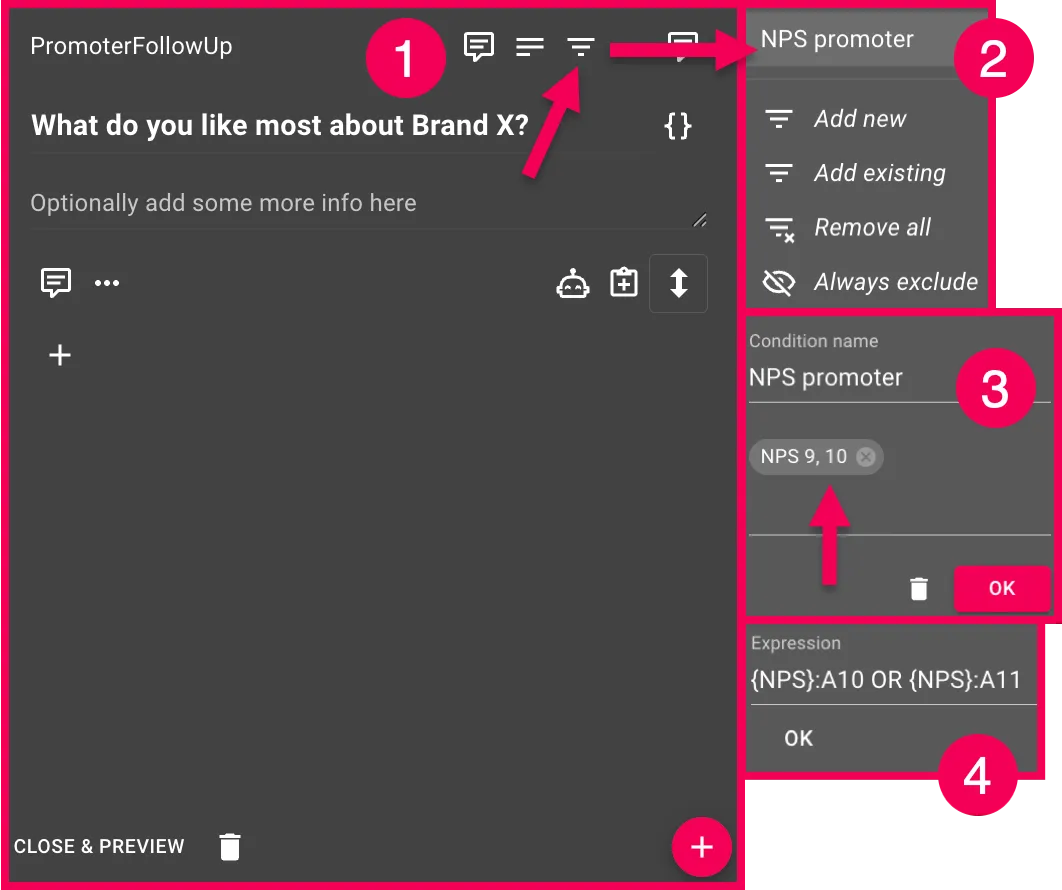
- Open the question you want to condition.
- Click the three-dot menu (⋯) in the upper-right corner of the question.
- Select Condition → Add new.
- Give your Condition a short name, such as “Has purchased.”
- Select which previous question or background variable should control the display, and which answer options should trigger it.
- Click OK.
Conditions on individual response options or rows in a matrix
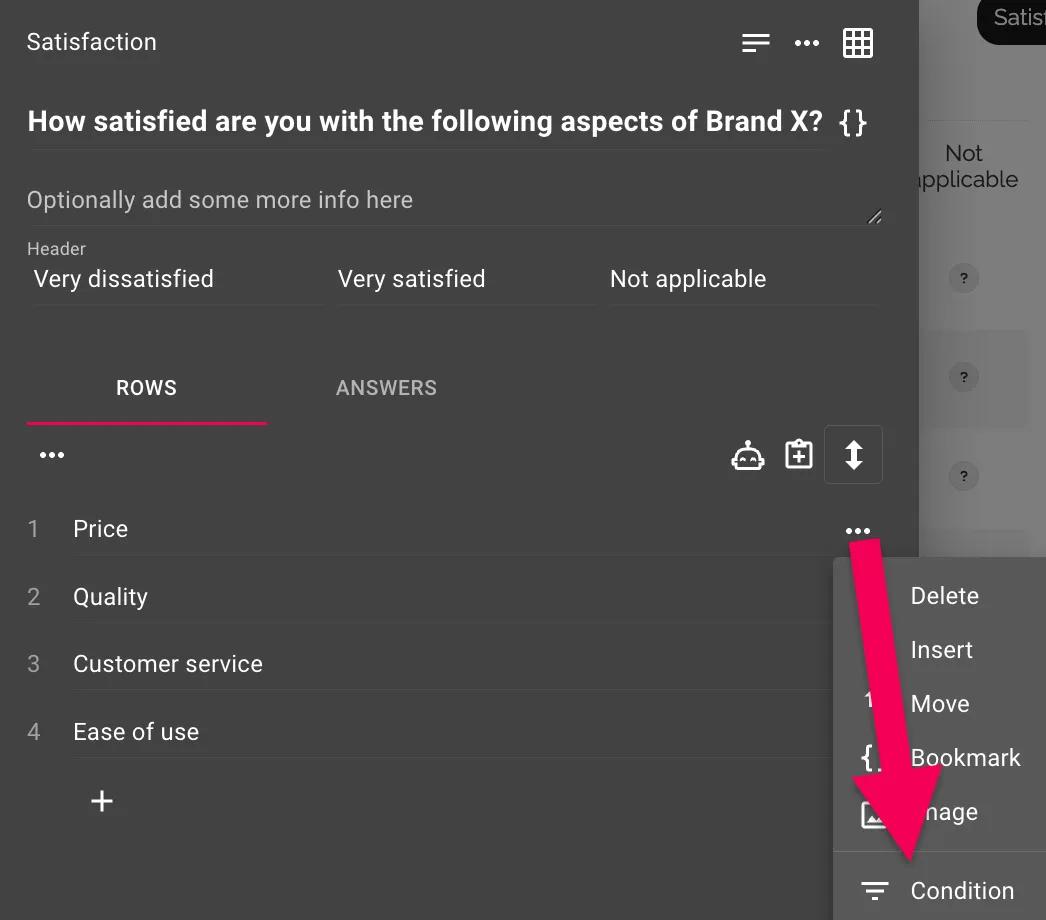
You can do the same thing at the detail level. Click the three-dot menu next to a specific response option or row in a matrix question instead of clicking the entire question.
Background data
Conditions can also be based on background data, not just on responses in the survey itself.
Advanced: Conditions as expressions
Each Condition is built using an expression. If you click into the expression field (or work with Error message logic), you can view and edit it directly.
The basic form is {Question}:{Answer}, where the question ID and answer ID are enclosed in curly braces. The expression is true if the participant has selected that specific answer.
Example:
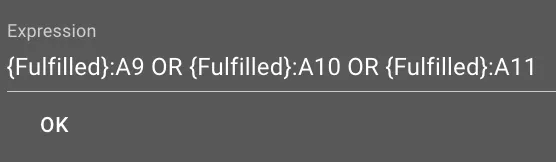
{Fulfilled}:{9}→ true if the participant selected answer 9 for the question “Fulfilled”{Fulfilled}:{9} OR {Fulfilled}:{10} OR {Fulfilled}:{11}→ true if any of the answers 9, 10, or 11 were selected{Gender}:{2} AND {Important}:{3}→ true only if both conditions are met
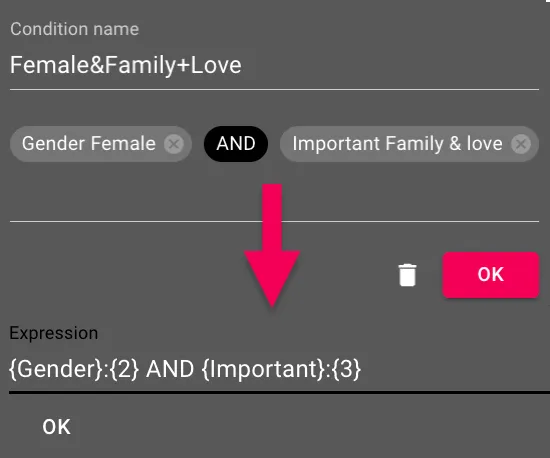
For matrix questions, you specify a specific row by adding the row number: {Aspects}.1:A5 means answer 5 in row 1 of the Aspects question.
Comparisons and Calculations
Expressions support mathematical and comparison operators, which are useful for open-ended questions with numerical answers:
- Arithmetic operators:
+, , ,/ - Comparison operators:
>,>=,<,<=,=,<>
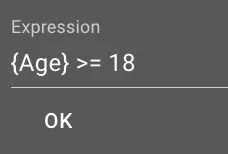
Example: {Age} >= 18 is true if the participant answered 18 or more to the “Age” question. This can be combined with AND/OR and parentheses just as shown above.