

Symptom: The underlying category level (e.g., municipalities in a tree structure of Total → County → Municipality) is imported as a single line of text (“1a”) instead of separate nodes.
Cause: The platform automatically flags columns with many unique values and sets them to the TEXT type as a safeguard—to prevent users from accidentally creating hundreds of nodes, which can slow down the project. When the column is set to TEXT, the entire field’s content is imported as free text per respondent, not as category nodes.
Step-by-Step
1. Check the column type in the import view
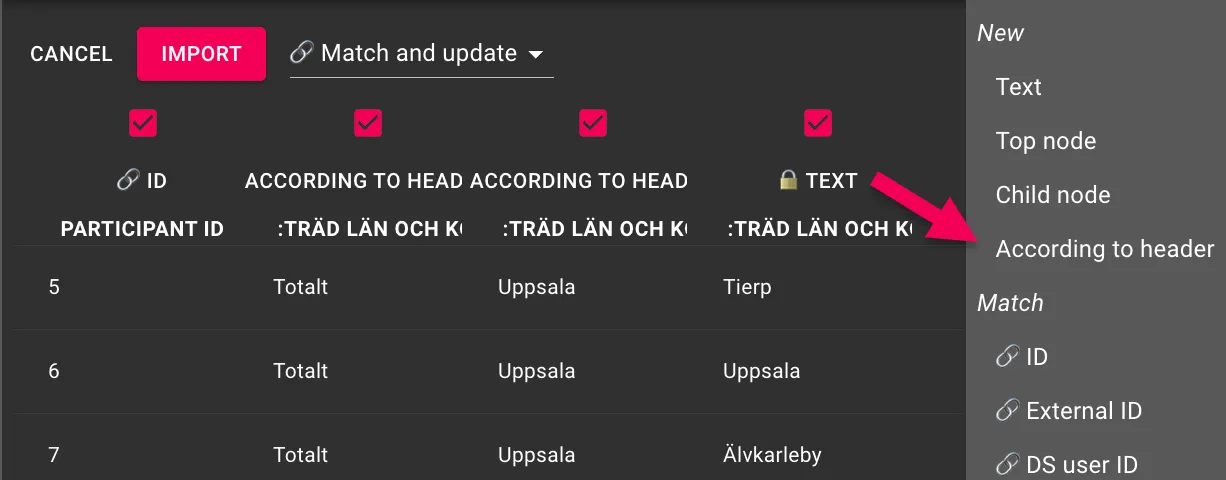
When you upload your Excel file and the mapping view appears, check the header row for each column. A column that the platform has automatically changed to TEXT is displayed with a lock icon and the label TEXT.
2. Change the column type to “According to header”
Click the TEXT label on the relevant column. A drop-down list opens with options:
Select “According to header.”
3. Confirm the warning
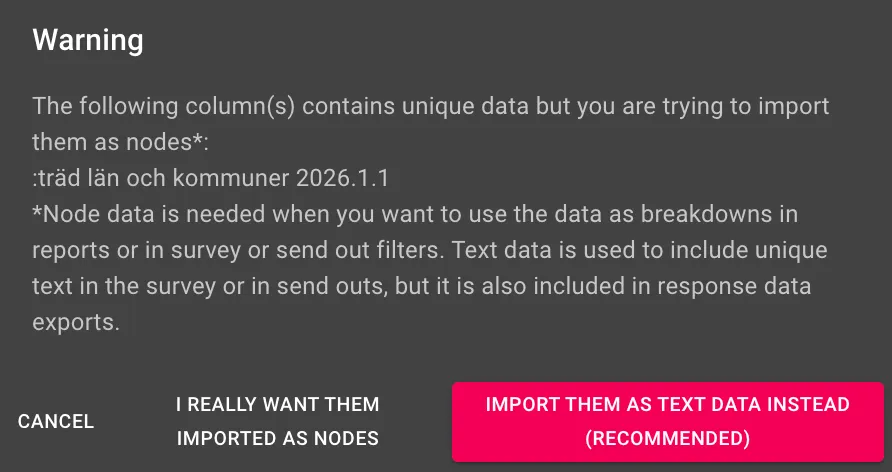
The platform displays a warning:
“The following column(s) contains unique data but you are trying to import them as nodes…”
You have two options:
- IMPORT THEM AS TEXT DATA INSTEAD (RECOMMENDED) – keep TEXT (not what we want here)
- I REALLY WANT THEM IMPORTED AS NODES – import as nodes ✓
Click on I REALLY WANT THEM IMPORTED AS NODES.
4. Verify that the import file has all levels
For the tree to be built correctly, each level must have a column in the Excel file, including a “Total” column as the top row. Example for a geographic tree:
| Participant ID | :tree counties and municipalities | :tree counties and municipalities.1 | :tree counties and municipalities.1.1 |
|---|---|---|---|
| 1 | Total | Uppsala | Tierp |
| 2 | Total | Uppsala | Uppsala |
| 3 | Total | Uppsala | Älvkarleby |
If the “Total” column is missing: add it to the Excel file before re-importing.