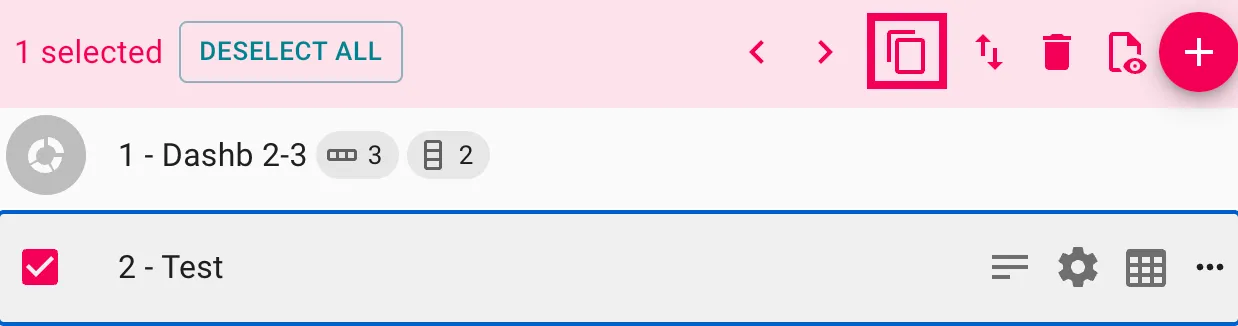
If you want to copy one specific report page (not the entire report) into another report, you do this from the Page list view using the Duplicate into action.
Prerequisites
- You have access to the project’s Report area.
- The destination report is in the same project (this function works within a project).
Step-by-Step Instructions
- Open the Report tab
- Go to your project and open the Report tab.
- Switch to Page list view
- Press Ctrl + L to switch to the Page list.
- Alternatively, click the gear icon in the top-right corner and select Page list.
- Select the page you want to copy
- In the Page list, click the row for the page you want to duplicate.
- You can also select multiple pages if needed.
- Click “Duplicate into”
- Click the Duplicate into icon (the duplicate/copy action in the toolbar above).
- A dropdown/list will appear.
- Choose the destination report
- From the list, select the report you want to copy the page into.
- The system will duplicate the selected page(s) into the chosen report.