

Demo project: https://app.researchautomators.com/#/23947/Survey
This guide explains how to build a single product evaluation survey that can be reused across multiple products — in this case, energy drink brands and flavors. The key mechanism is a hidden ProductID field that is pre-filled via a URL parameter when distributing the survey. Based on that value, dynamic bookmarks automatically display the correct brand name and flavor throughout the survey, so each respondent sees questions tailored to their assigned product without requiring separate surveys.
Step 1.
Create an Open Comment question. Name it ProductID and give it the same ID. This question acts as the carrier for the product code (T01, T02, T03 etc.) that will drive all the dynamic Bookmarks later in the survey.
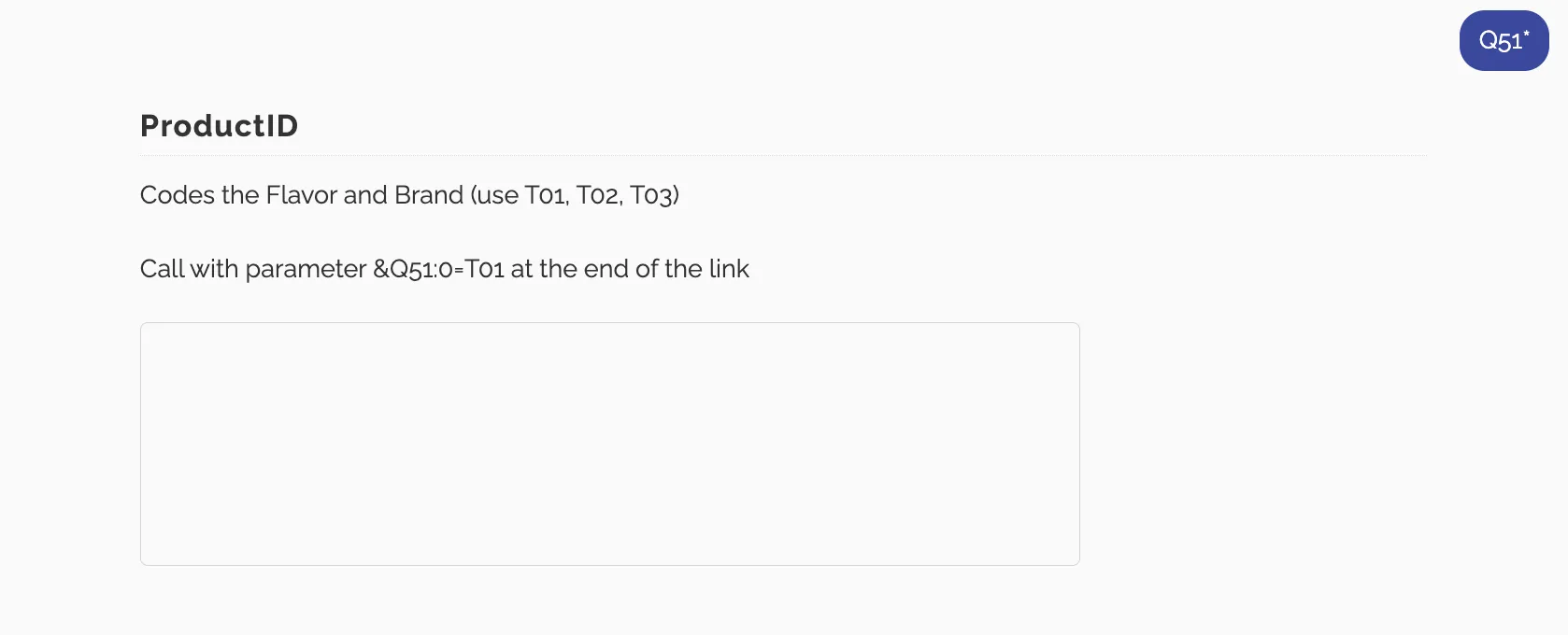
Step 2.
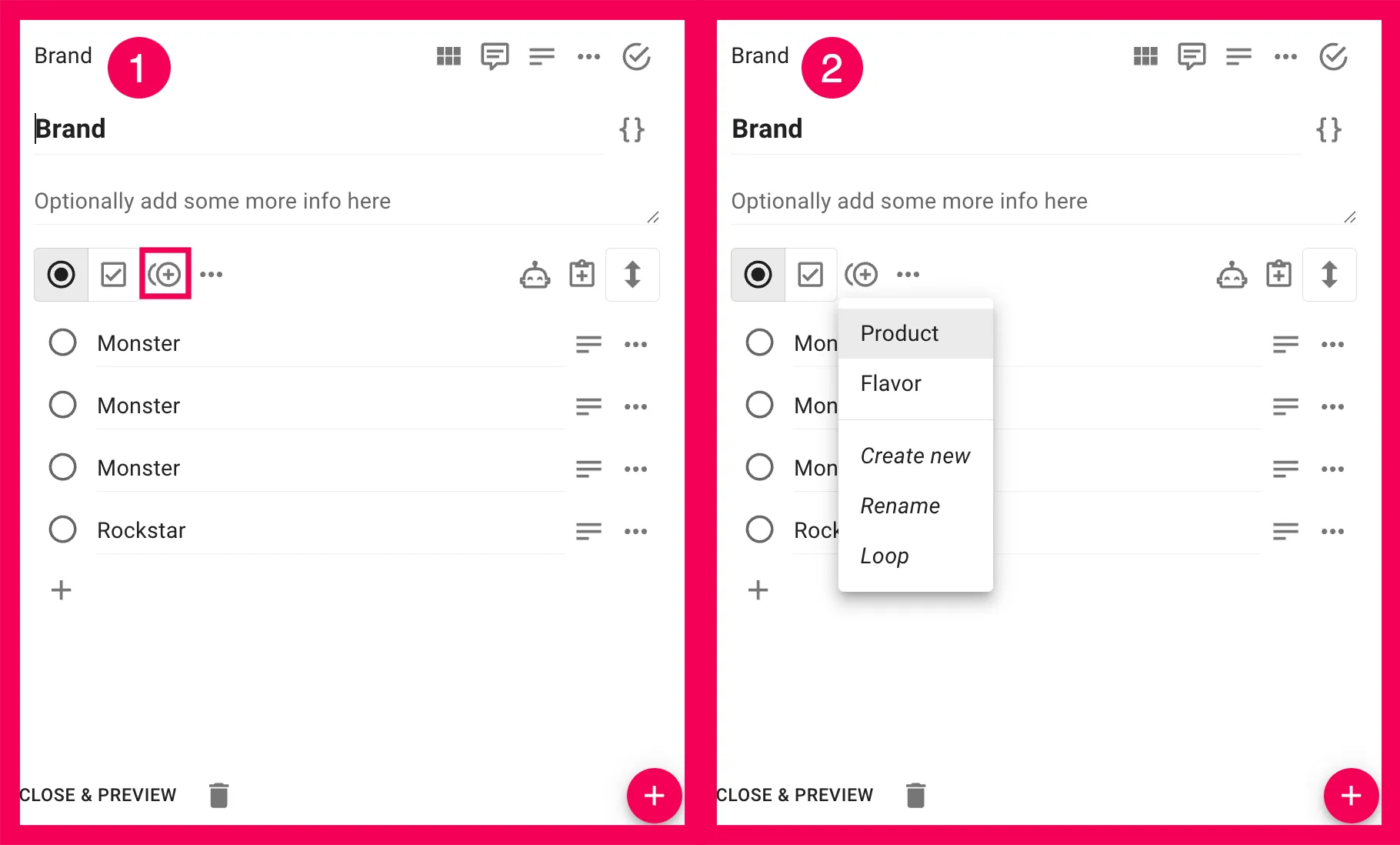
Create a Single Select question. In this example, we will name it Brand, same goes for the ID.
Enter all the answer alternatives → Settings → Answer block → Create new, and name the answer block (e.g. “Product”).
Step 3.
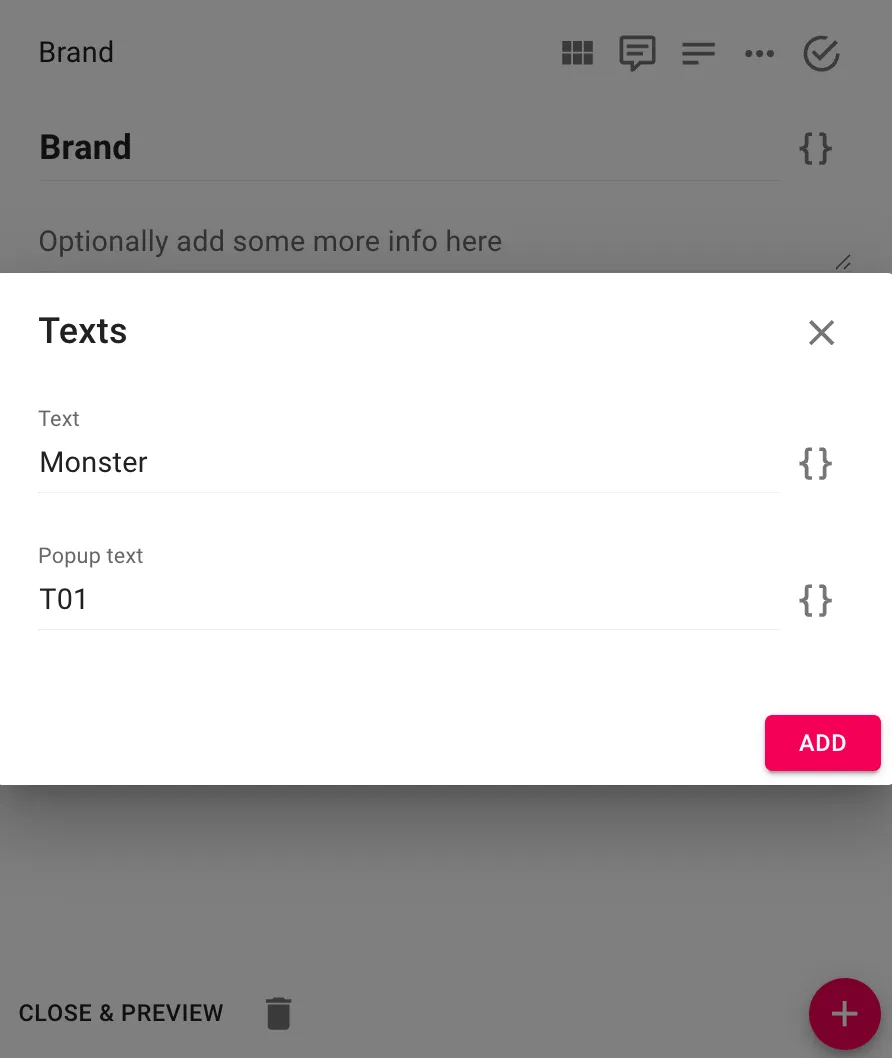
For each answer alternative in the Brand question, you need to assign a T-code via the Popup text field. This is what links each answer option to a specific product code.
For the first alternative: click the answer’s settings → Edit texts → Add texts → Popup text → enter T01.
Repeat for each subsequent alternative in ascending order: T02, T03, T04, and so on.
Step 4.
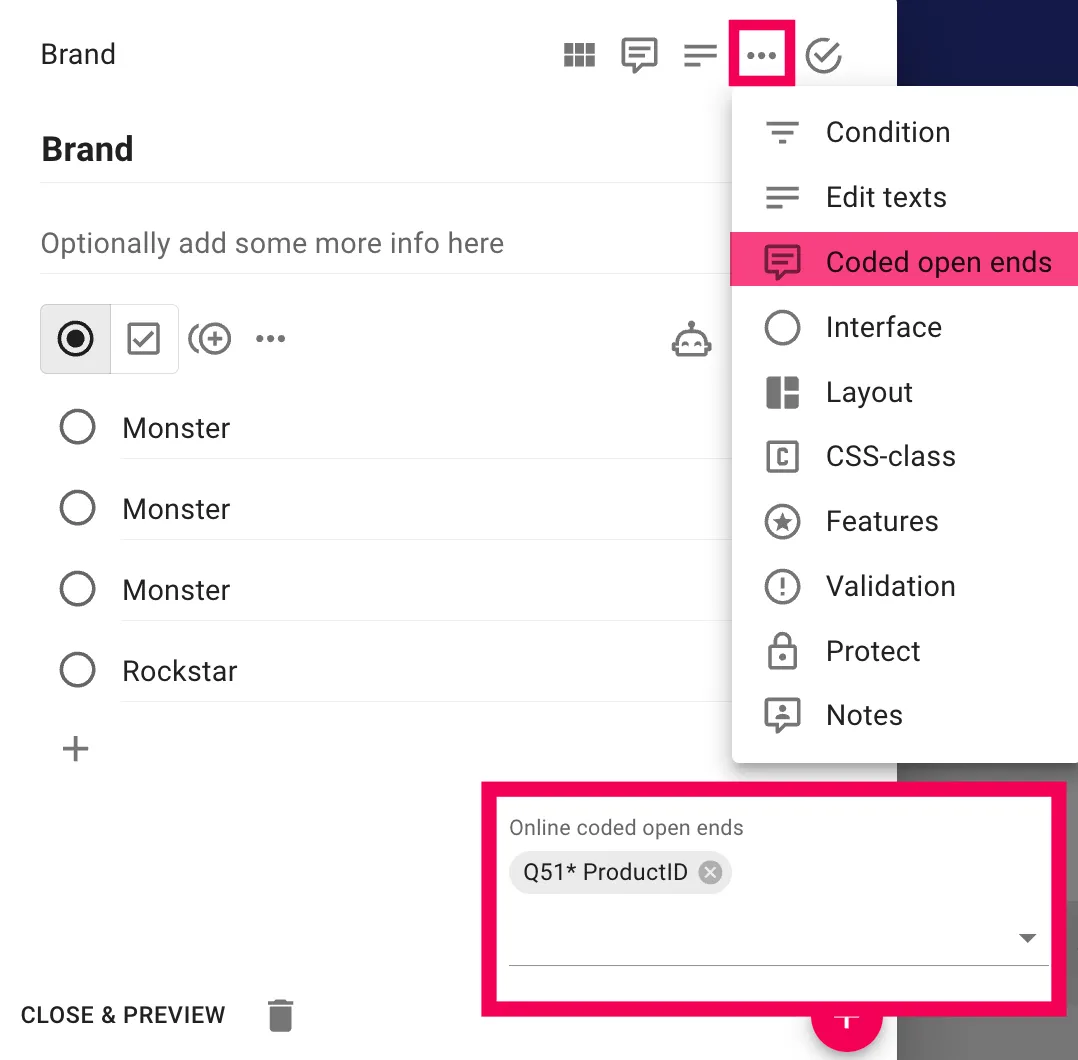
Open the Brand question’s settings → Coded open ends → select the ProductID question created in Step 1 (in this example: Q51 ProductID).
This connection means that when the survey detects a T-code in the ProductID field, it will automatically select the matching Brand answer, the one whose Popup text matches that code.
Step 5.
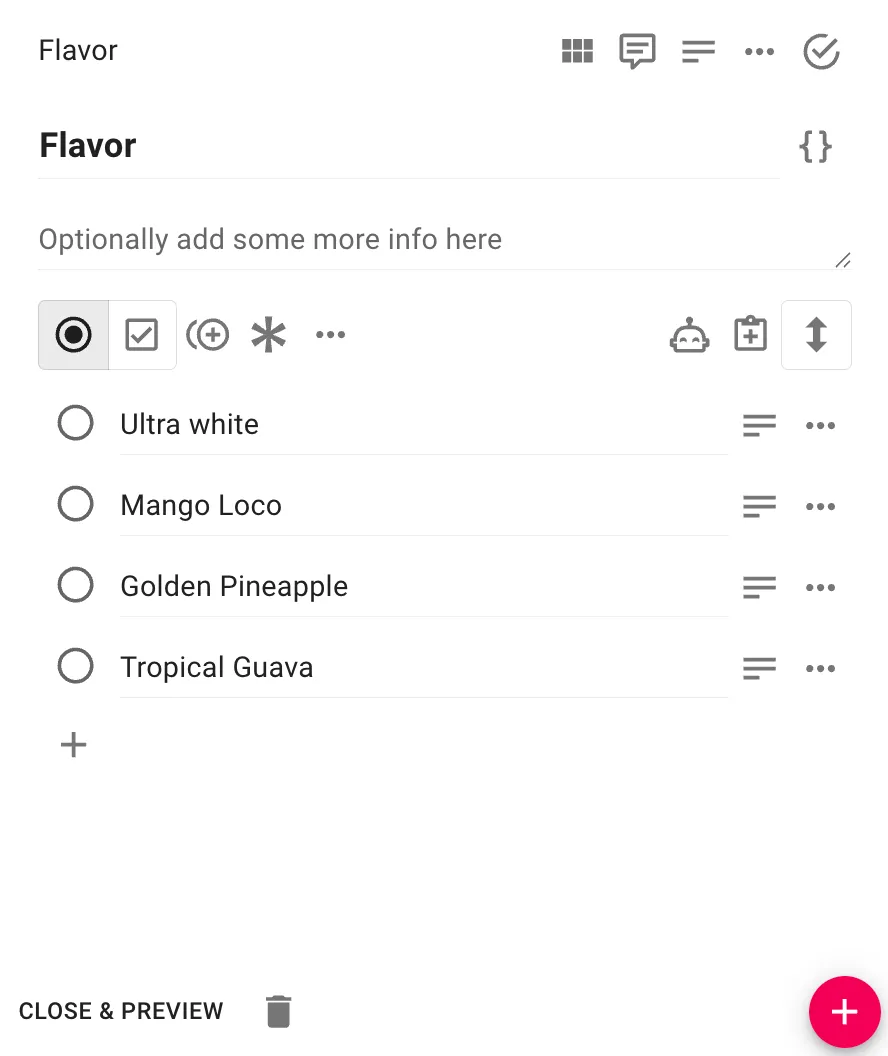
Create a new Single Select question named Flavor. Repeat the same setup as the Brand question: add all flavor alternatives, create an answer block, and activate Coded open ends pointing to the same ProductID question.
Importantly, the Popup text codes must use the same T-values as the Brand question: T01, T02, T03, T04, so that a single ProductID code selects both the correct brand and its corresponding flavor simultaneously.
Step 6.
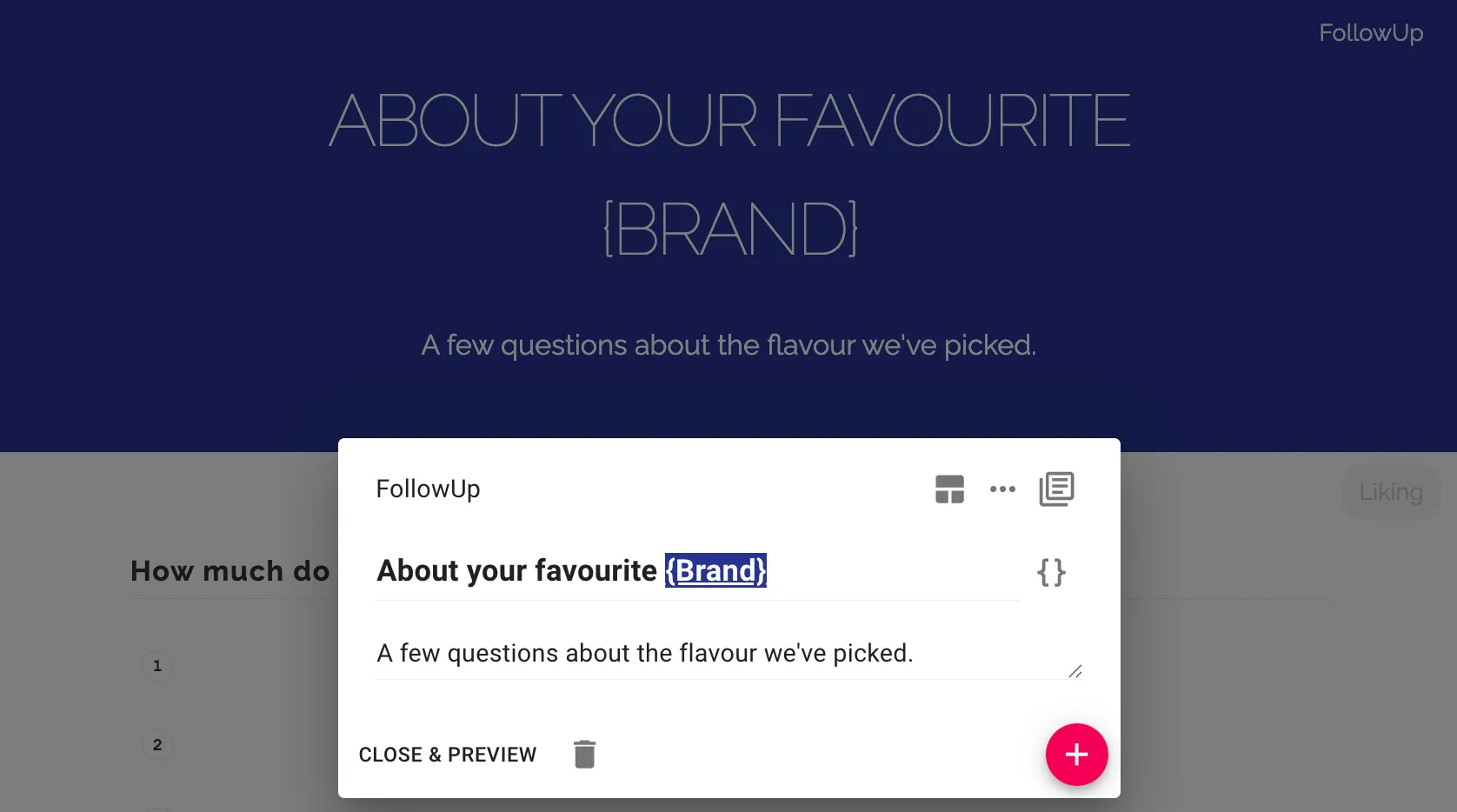
Create a Header block and write your introductory text. Use a Bookmark in the header that references the Brand question, so the respondent’s brand name is displayed dynamically (e.g. “About your favorite {Brand}”). Add a page break between the Header block and the Brand question.
Step 7.
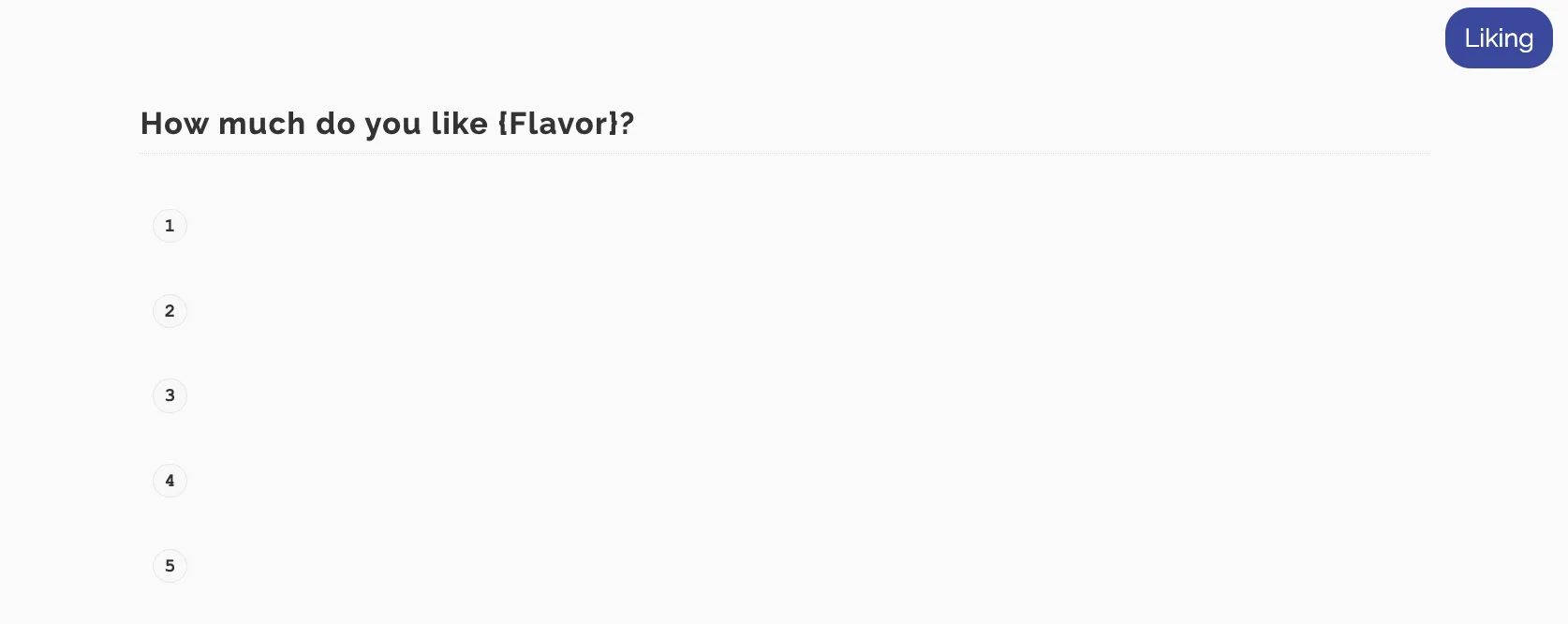
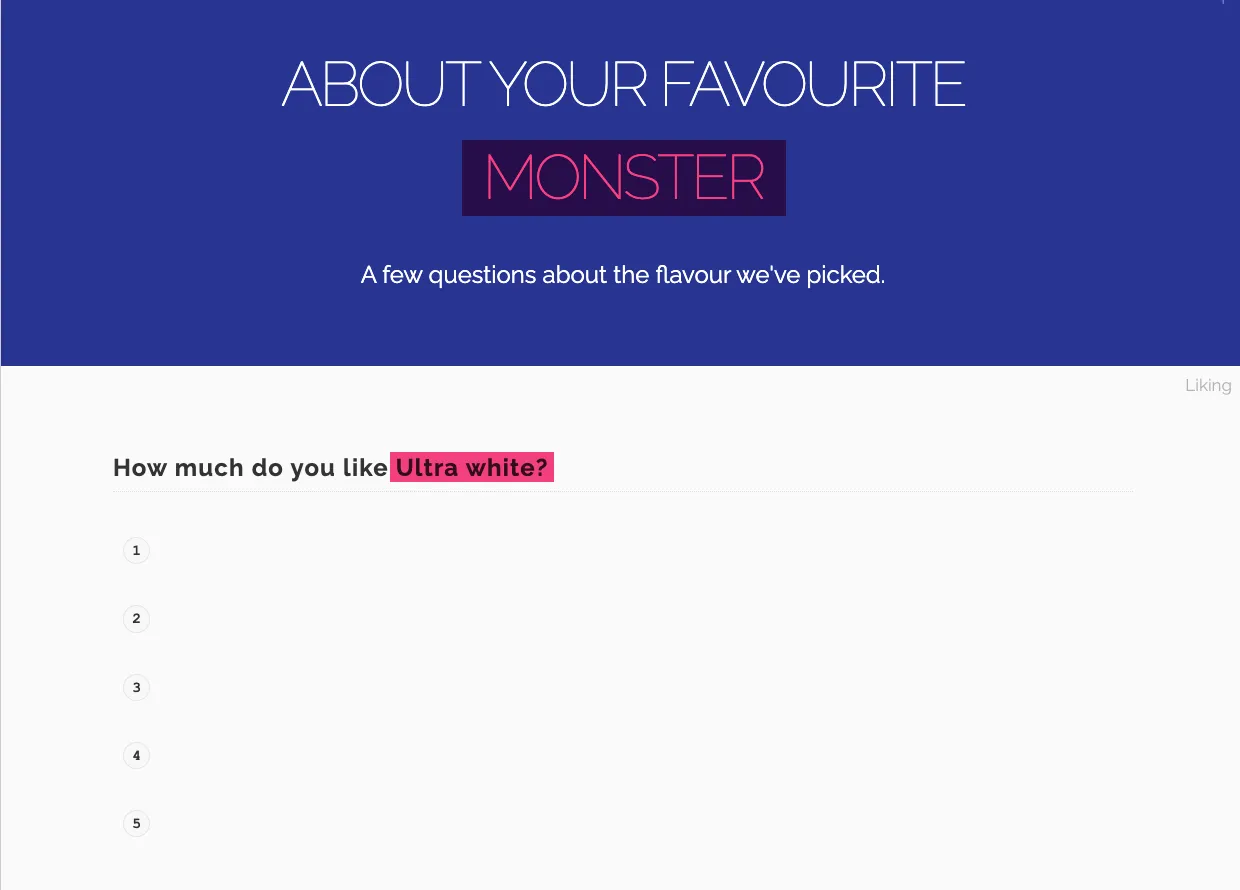
Create a question where the respondent rates the flavor. Add a Bookmark in the question text that references the Flavor question’s Coded open ends output, so the question reads dynamically (e.g. “How much do you like {Flavor}?”).
Step 8.
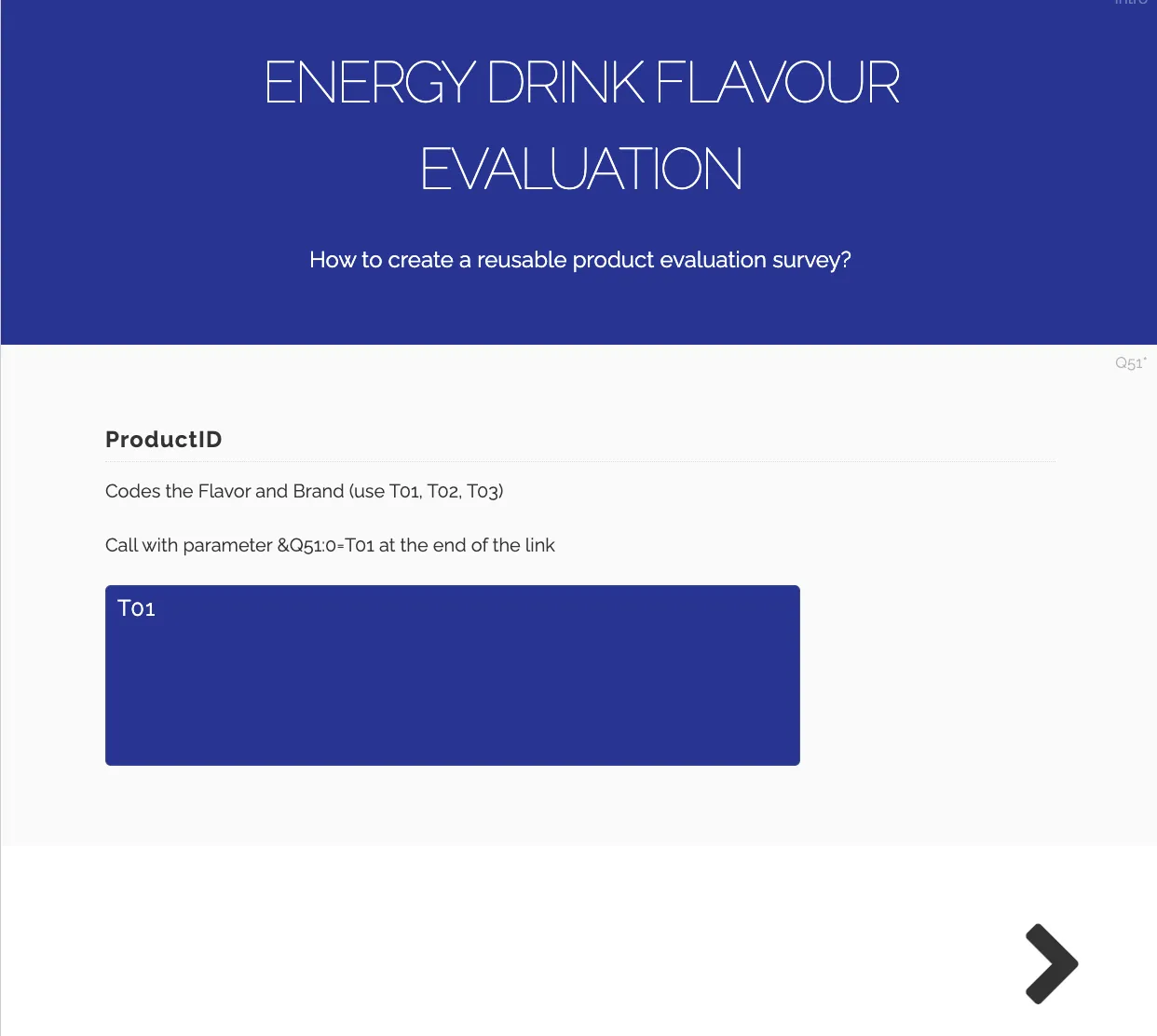
Before distributing, verify the bookmark logic works correctly. Open the survey and manually enter T01 in the ProductID field. On the following page, the Brand and Flavor bookmarks should resolve to the first entries in their respective answer blocks — in this example, Monster and Ultra White.
Step 9.
When distributing, enable panel links for the project. The base panel link in this project will look like this:
https://svar.researchautomators.se/?122200824start&XQID=[ID]&XQLANG=m
To pre-assign a specific product to a respondent, append the ProductID parameter to the end of the URL:
https://svar.researchautomators.se/?122200824start&XQID=[ID]&XQLANG=m&Q51=T01
Each T-code maps to a different brand/flavor combination. Send the appropriate link to each respondent group, there is no need to create separate surveys per product.