What it does
AI Analysis reads the data on a report page and writes a summary or a set of conclusions directly into the report. You don’t need to copy numbers into a text box or write a comment manually—the system does it for you based on the data on that page.
Step 1. Configure the AI prompt
This is done once at the report level and applies to all pages that use the AI Analysis bookmark.
-
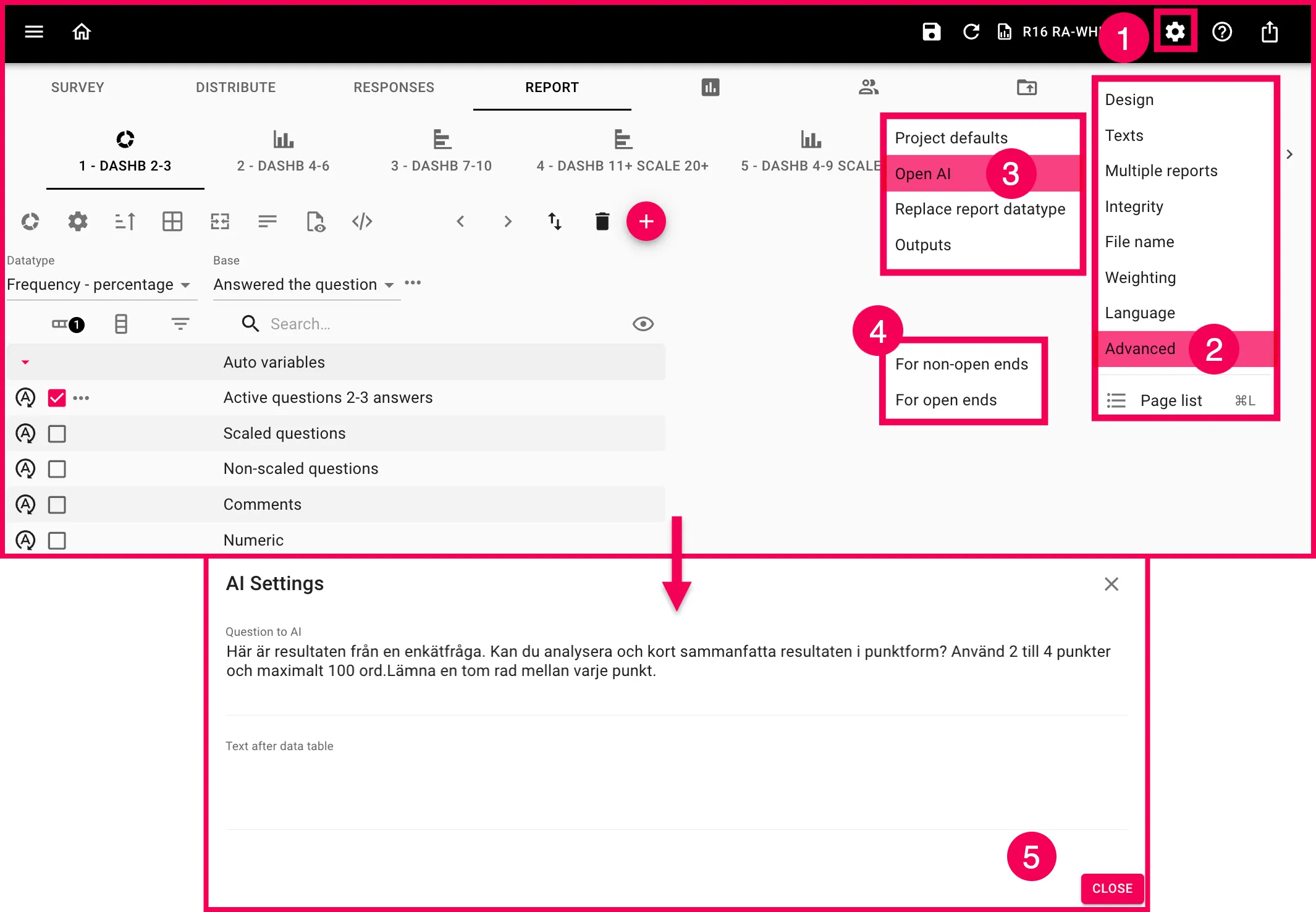
In the Report tab, click the gear icon in the upper-right corner
-
Go to Advanced → OpenAI
-
You’ll see two options:
- For non-open-ended questions: use this for chart and table pages (ratings, scales, multiple-choice questions)
- For open-ends: use this for pages displaying free-text responses
-
Click the relevant option. A small window will open with a field labeled “Question to AI” —this is your prompt. Type the instruction you want the AI to follow, for example:
“Here are the results from a survey question. Can you analyze and briefly summarize the results in bullet points? Use 2 to 4 bullet points and a maximum of 100 words. Leave a blank line between each bullet point.”
-
If you’d like, you can add a “Text after data table” if you want a fixed line of text to always appear after the AI’s response
-
Click Close when you’re done.
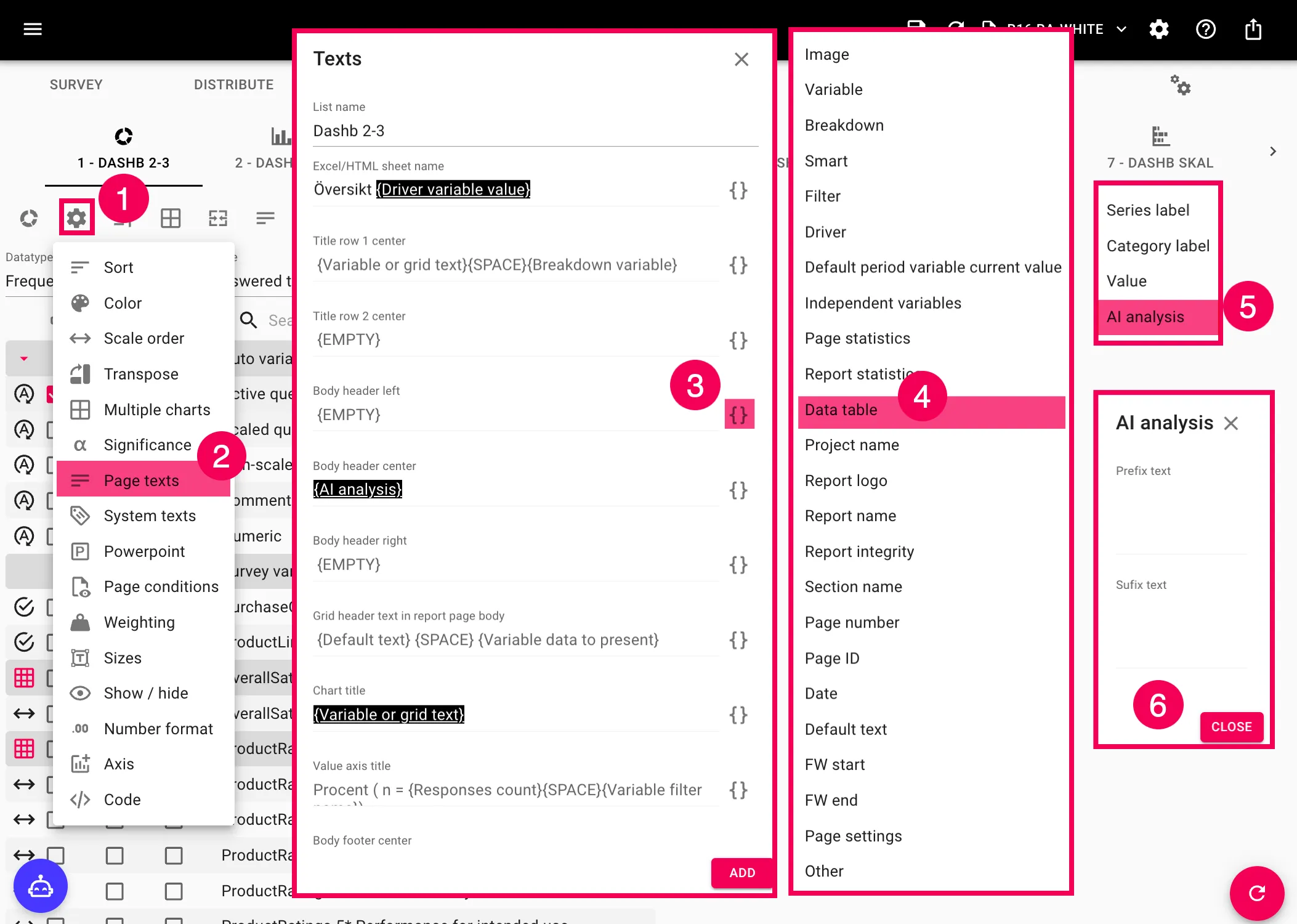
Step 2. Add the “AI Analysis” bookmark to a report page
Here, you decide where on the page the AI-generated text should actually appear.
- In the Report tab, make sure you’re on the report page you want to edit
- Click the gear icon above the variable list ( report page-level settings)
- Go to Page Texts
- Select the text field where you want the analysis to appear
- Click the Insert Bookmark icon in that field
- Navigate to Data Table → AI Analysis
- The
{AI Analysis}bookmark is now inserted in that field. Add any prefixes or suffixes around it if needed