

The same email batch is sent only once per respondent
When you send a message from Distribute → Show Messages, the email is normally sent only to participants who haven’t already received that specific message. This means that, as a rule, the same email batch won’t send the same email twice to the same respondent. If you send the same message again later, therefore, only new participants will receive it. The exception is if you go to Distribute → Participants, select one or more specific participants, and resend the message manually. In that case, the same person may receive the message again.
Schedule reminders
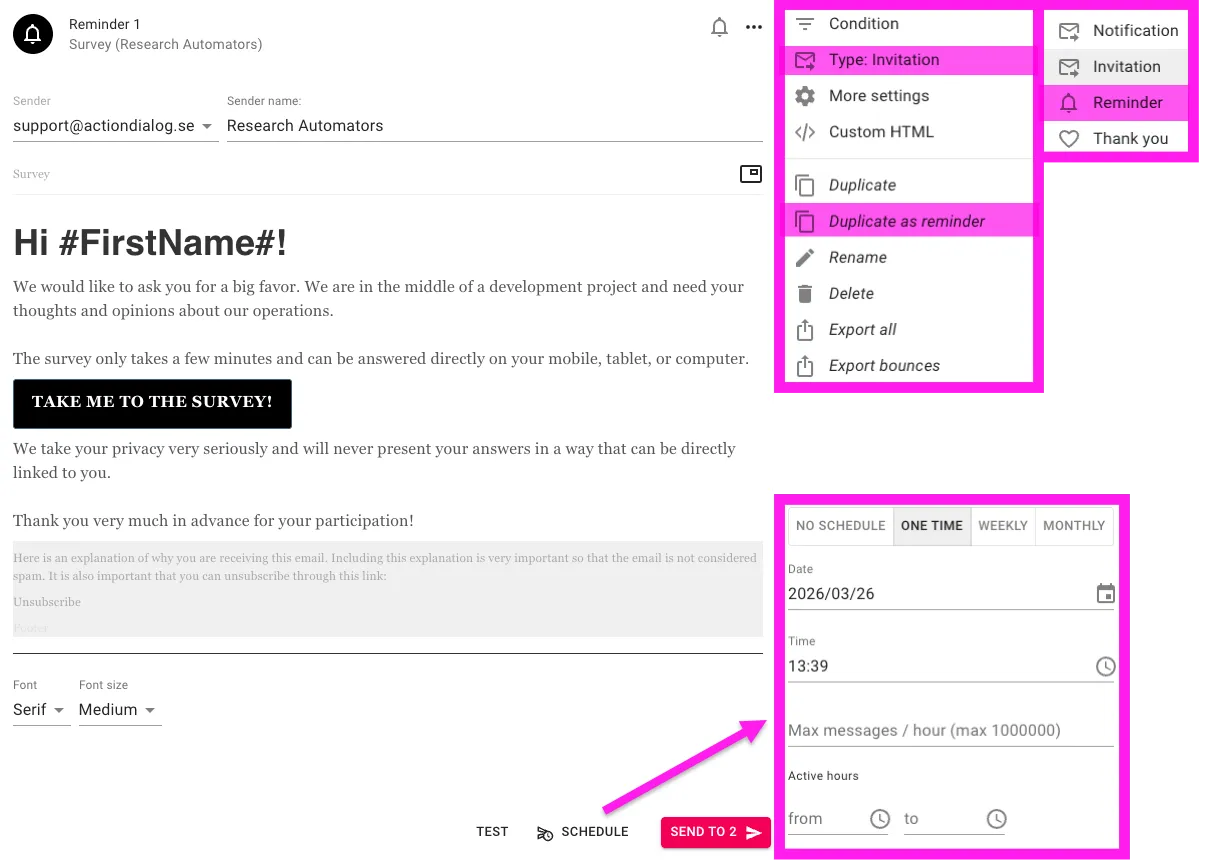
To create a reminder: click the three dots on an existing mailing and select “Duplicate as reminder,” or to modify an existing mailing, select “Type: Invitation → Reminder.” When the mailing is set as a reminder, it is displayed with a bell icon, making it clear that it is a reminder.
A reminder is sent only to participants who have not yet completed the survey. Participants with the status “Completed” are therefore not included in the reminder.
To schedule the mailing, click SCHEDULE at the bottom of the mailing. There, you can choose how the reminder should be sent: One time, Weekly, or Monthly. In the same view, you can set the date, time, and other settings for when the mailing should be sent.
Scheduling Weekly and Monthly Mailings
When a mailing is scheduled as Weekly or Monthly, it runs repeatedly according to the interval you’ve selected. This means that the same mailing isn’t sent just once; instead, the system continues to run it according to the schedule until you change or stop it.
Each time a scheduled run occurs, the system checks which participants are eligible at that specific time. For reminders, this means the mailing is sent only to participants who have not yet completed the survey. Participants with the “Completed” status will therefore not receive the reminder, even if the mailing continues to run weekly or monthly.
Automatic Mailings in Rolling Projects
In rolling projects where new respondents are added on an ongoing basis, scheduled mailings work well because the system checks the participant list with each run. This means that new participants added since the last run can receive the mailing when the next scheduled time occurs.
Since the same email is normally sent only once per respondent, duplicate emails are avoided, while new participants are continuously captured by the schedule.
Email Statuses in Survey Automator
Email statuses show what has happened with the email or how far the respondent has progressed in the survey.
-
Email statuses
Completed
The respondent has filled out the survey and completed it.
Started
The respondent has started the survey but has not completed it.
Opened
The respondent has opened the email but has not started the survey.
Received
The email has reached the respondent, but the link has not been opened.
Soft bounce
The email could not be delivered at this time, but it may still be possible at a later time.
Spam (soft bounce)
The domain used for the mailing has been flagged as spam and has a poor domain reputation.
Unsubscribe
The recipient has chosen not to receive any more emails.
Hard bounce
The email could not be delivered due to a permanent error and will normally not be delivered on subsequent attempts, for example, if the address does not exist. This status can sometimes be set even before the email is sent via an automatic bounce check. The system saves the hard bounce status and normally does not attempt to resend, as repeated attempts can damage the sender domain’s email reputation. If you still need to resend, the recipient can be re-included via Include.
Invalid
The email address is invalid. This status is flagged in the system before the mailing is sent.
For more information about a specific mailing, open a respondent and go to … → Delivery logs.
Increase the delivery speed
If you want to increase the rate of a mailing, do so via SCHEDULE in the mailing settings. Clicking there opens the scheduling dialog, where you can set, among other things, Max messages / hour. This value controls how many emails may be sent per hour for that specific mailing.
It’s important not to set the rate too high. A rate that’s too high can negatively impact your domain reputation and increase the risk of delivery issues, being marked as spam, and bounces. The rate should therefore be adjusted so that mailings are sent at a controlled pace. For this reason, we have set a limit of 12 mailings per hour as the default setting.